Quick Start with Moodle at HSD for Incoming Students
Are you new to Hochschule Düsseldorf? This guide will help you get started with Moodle, the central learning platform for your courses, assignments and exams.
Welcome to Hochschule Düsseldorf (HSD)! Whether you are here for a semester on an exchange programme or have started a full degree programme, you will use Moodle almost every day. This guide will help you get started quickly and easily.
What Is Moodle?
Moodle is HSD's central learning and assessment platform. It is a web-based system through which your lecturers can share course materials, set assignments and quizzes, and communicate with you. Think of it as your digital classroom. You can use it to access lecture slides and reading materials, submit assignments, take online exams, participate in discussion forums, check deadlines and collaborate with fellow students.
How to Log In
You log in with your HSD account – the same credentials you use for other university services such as email or the campus network.
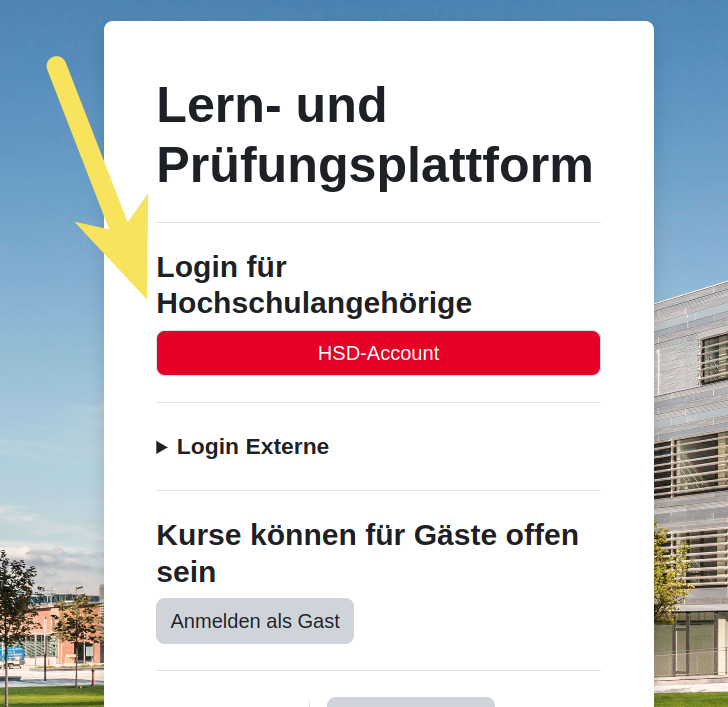
- Go to mdl.hs-duesseldorf.de.
- Click the red "HSD-Account" button.
- Enter your HSD username and password.
Accepting the Privacy Policy
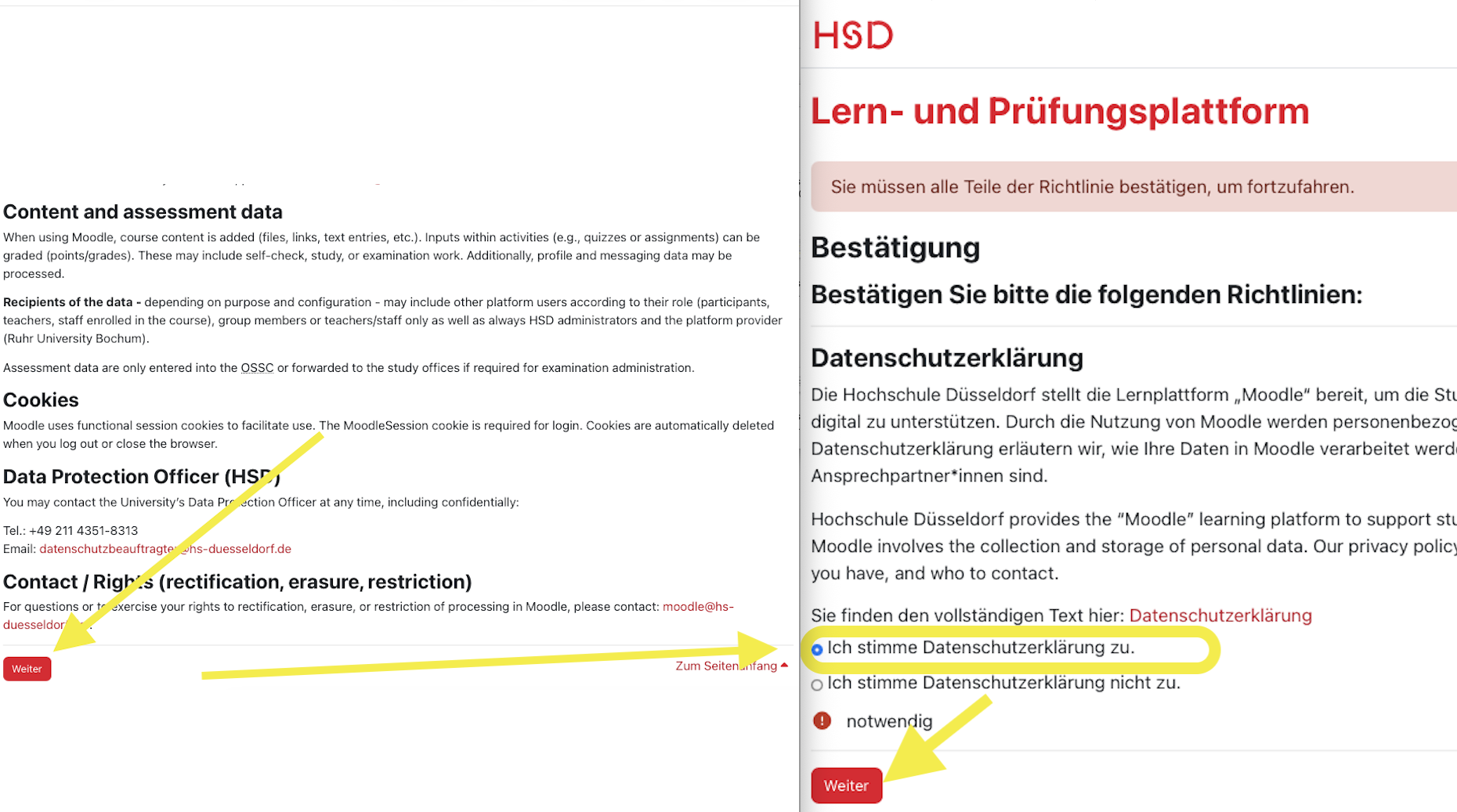
The first time you log in to Moodle, you will be asked to accept the university's privacy policy. This is a one-time step that is required by the university.
- Read through the privacy policy (it explains how your data is handled on the platform) and click "Weiter" (Continue) to proceed to the confirmation step.
- Select "Ich stimme Datenschutzerklärung zu" (I agree to the privacy policy).
- Click "Weiter" to finish.
Switching Moodle to English
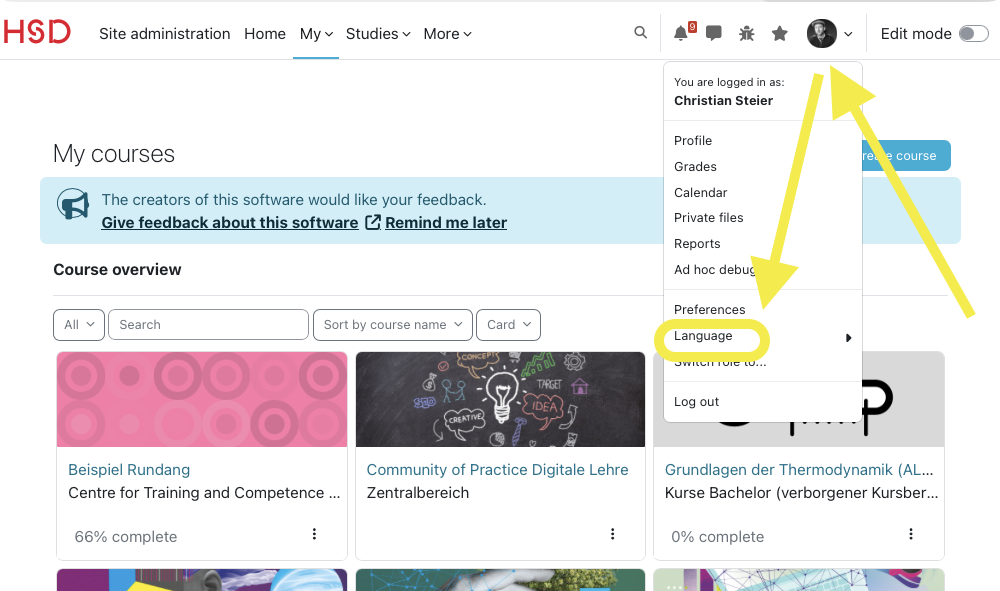
Moodle usually detects your browser language automatically. If the interface still appears in German after logging in, you can switch it to English in a few simple steps:
- Click your profile icon (avatar) in the top-right corner of the page.
- In the dropdown menu, click Language.
- Select English (en) from the list and save your changes.
First-Time Setup: Choose Your Faculty
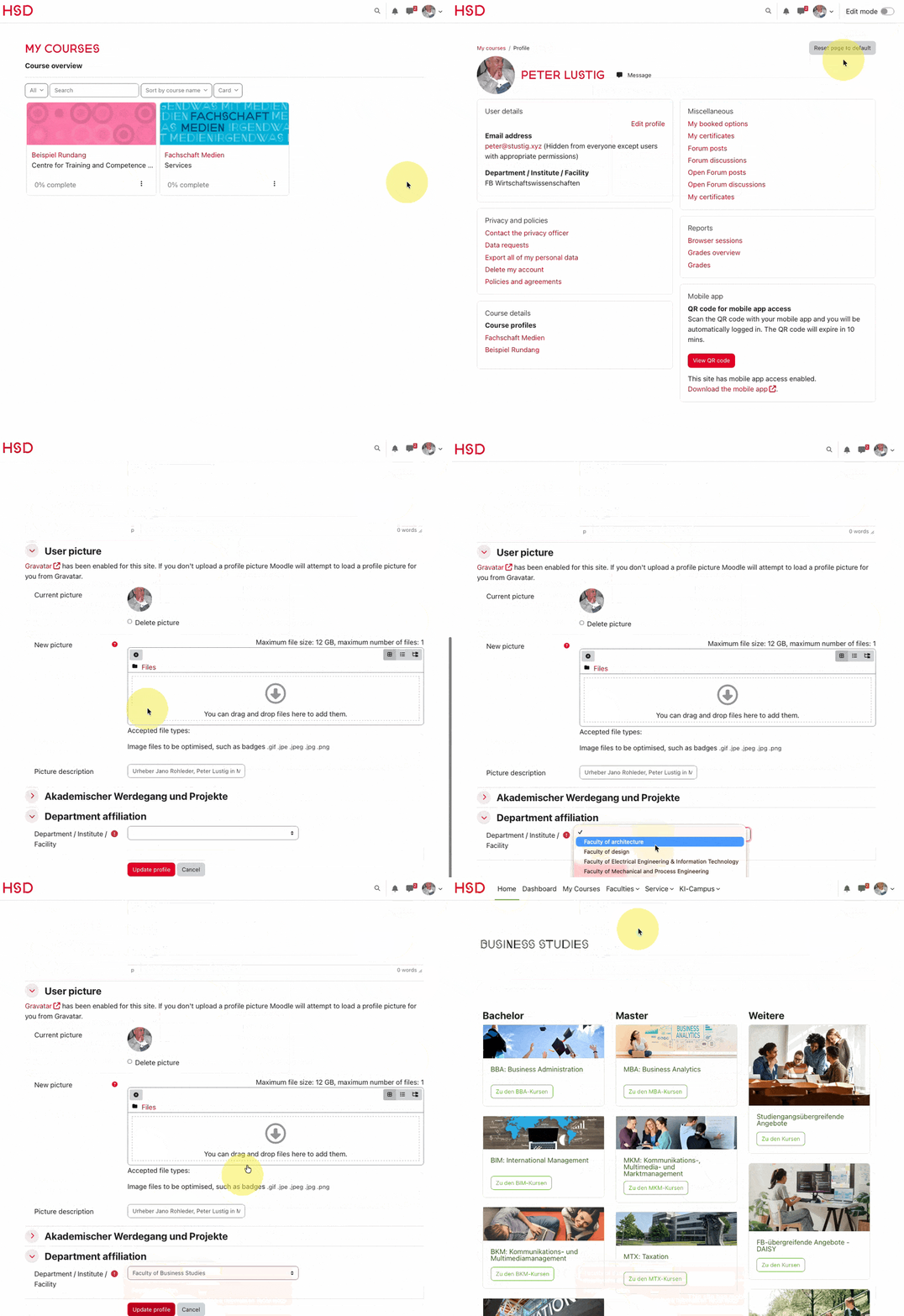
The first time you log in, Moodle will ask you to select your faculty or institution in your profile settings. This is an important step, as it determines which menus and features you can access.
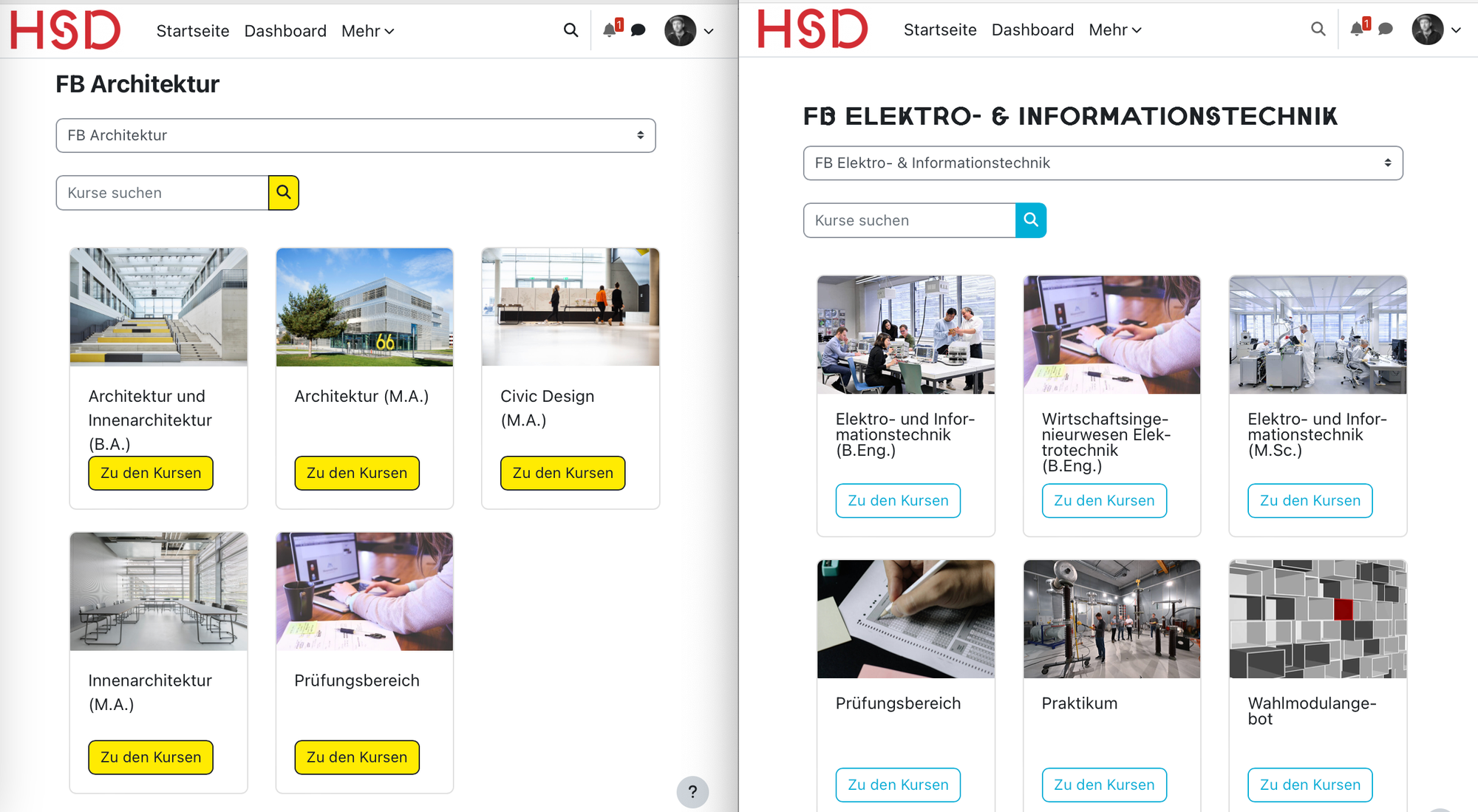
Why Moodle May Look Different Across Faculties
If you talk to students from other faculties, you may notice that their Moodle looks slightly different to yours. This is perfectly normal and by design.
At HSD, each faculty has its own faculty administrator who customizes Moodle to fit the specific needs of that department. This means:
- Colors and branding may differ – each faculty has its own visual identity.
- The top navigation menu may show different links depending on your faculty.
- The start page may be organized differently, highlighting resources relevant to your department.
- Some menu items may be named slightly differently or appear in different positions.
Finding Your Way Around After Login
Once you have logged in and set up your profile, this is what you will see:
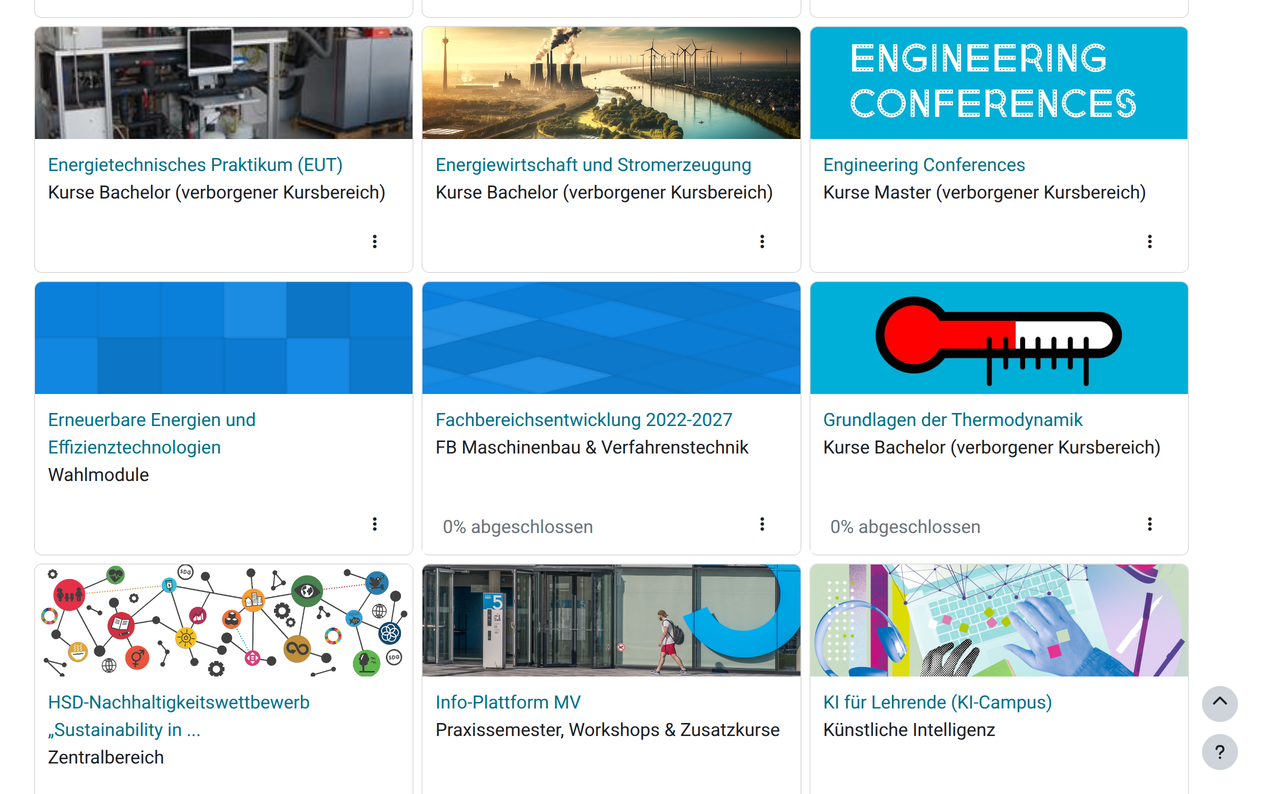
The Dashboard
Your dashboard is your personal home screen. It displays all the courses you are enrolled in as tiles. This can become crowded over time, but there is a solution (see 'Organising your courses' below).
The Top Navigation Bar
The primary navigation bar is fixed to the top of the screen and remains visible when scrolling. It contains quick links to the main Moodle areas. Please note that this bar may look different depending on your faculty.

Inside a Course
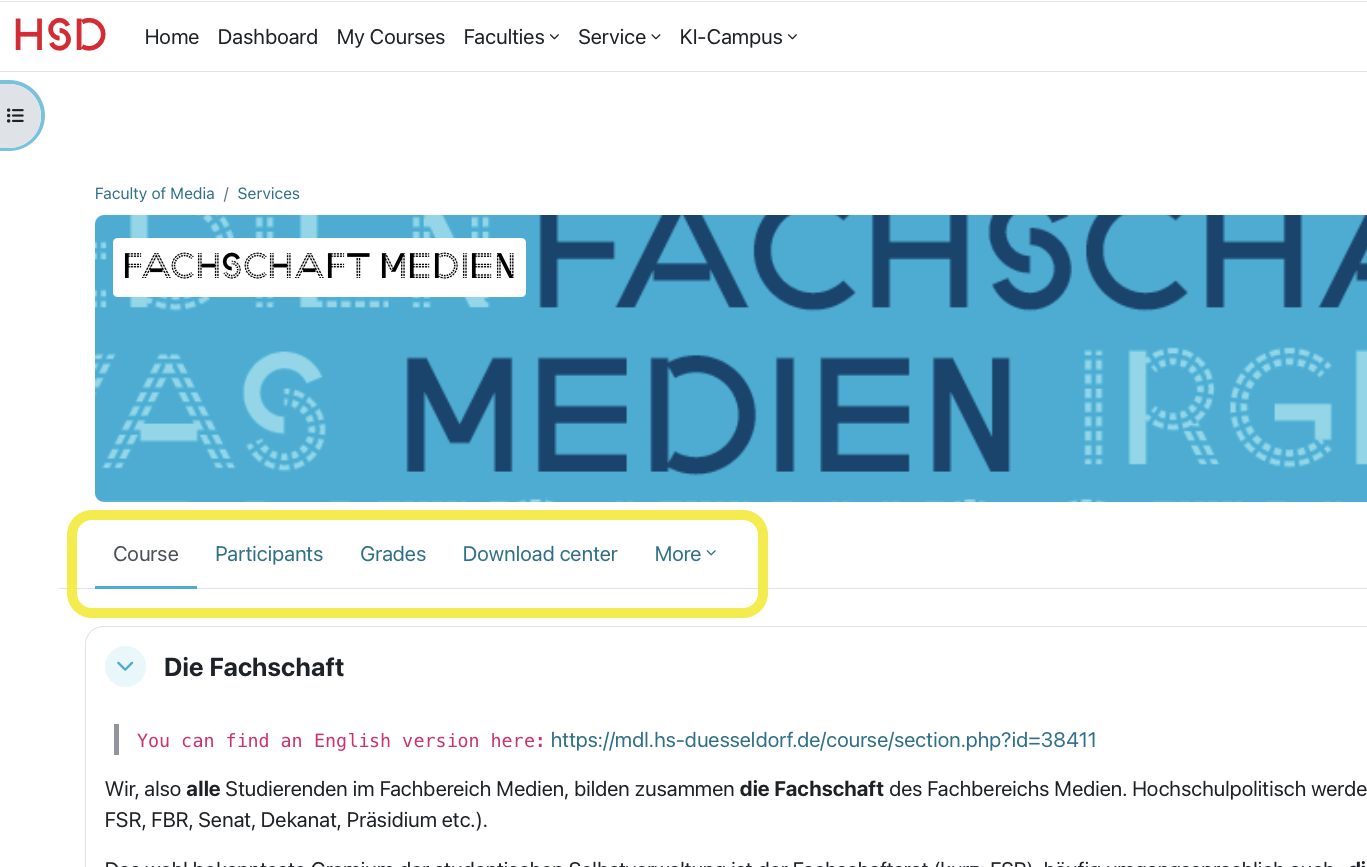
When you access a course, you will see a secondary navigation bar containing tabs for course content, participants and grades. The layout adapts to what you are currently viewing. For example, when you open a specific activity, the tabs change to show the relevant options.
Enrolling in Your Courses
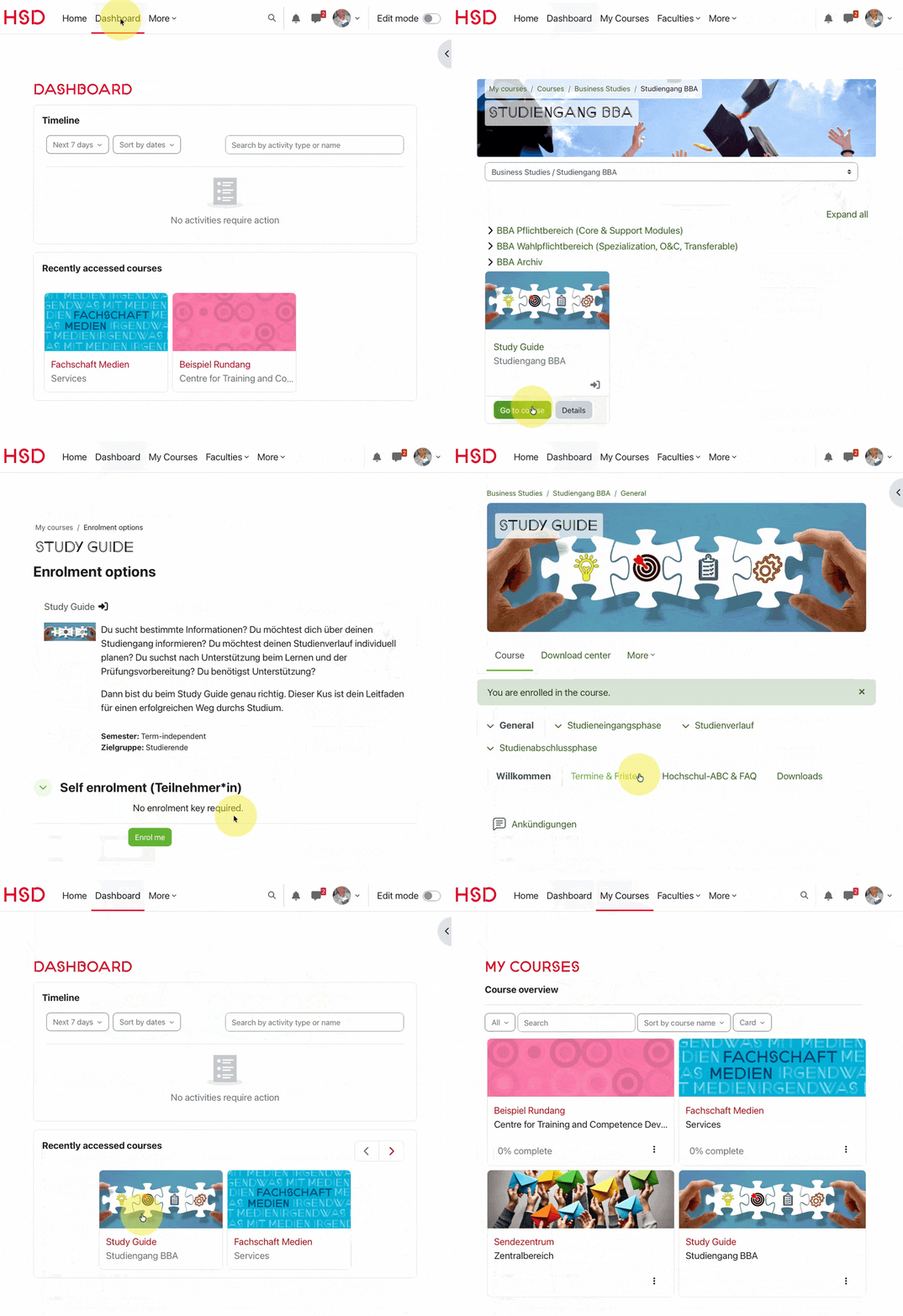
The way you access a Moodle course depends on your faculty and the individual lecturer. There are two common methods.
- Automatic enrolment: Some faculties enrol students directly based on their registration data. If this applies to you, the course will simply appear on your dashboard – no action is required.
- Self-enrollment: Other courses require you to enroll yourself. You search for the course in Moodle and click "Enrol me". Some lecturers protect this with an enrollment key (a password) to make sure only the right students join. You will usually receive this key in the first lecture.
Organizing Your Courses with Favorites
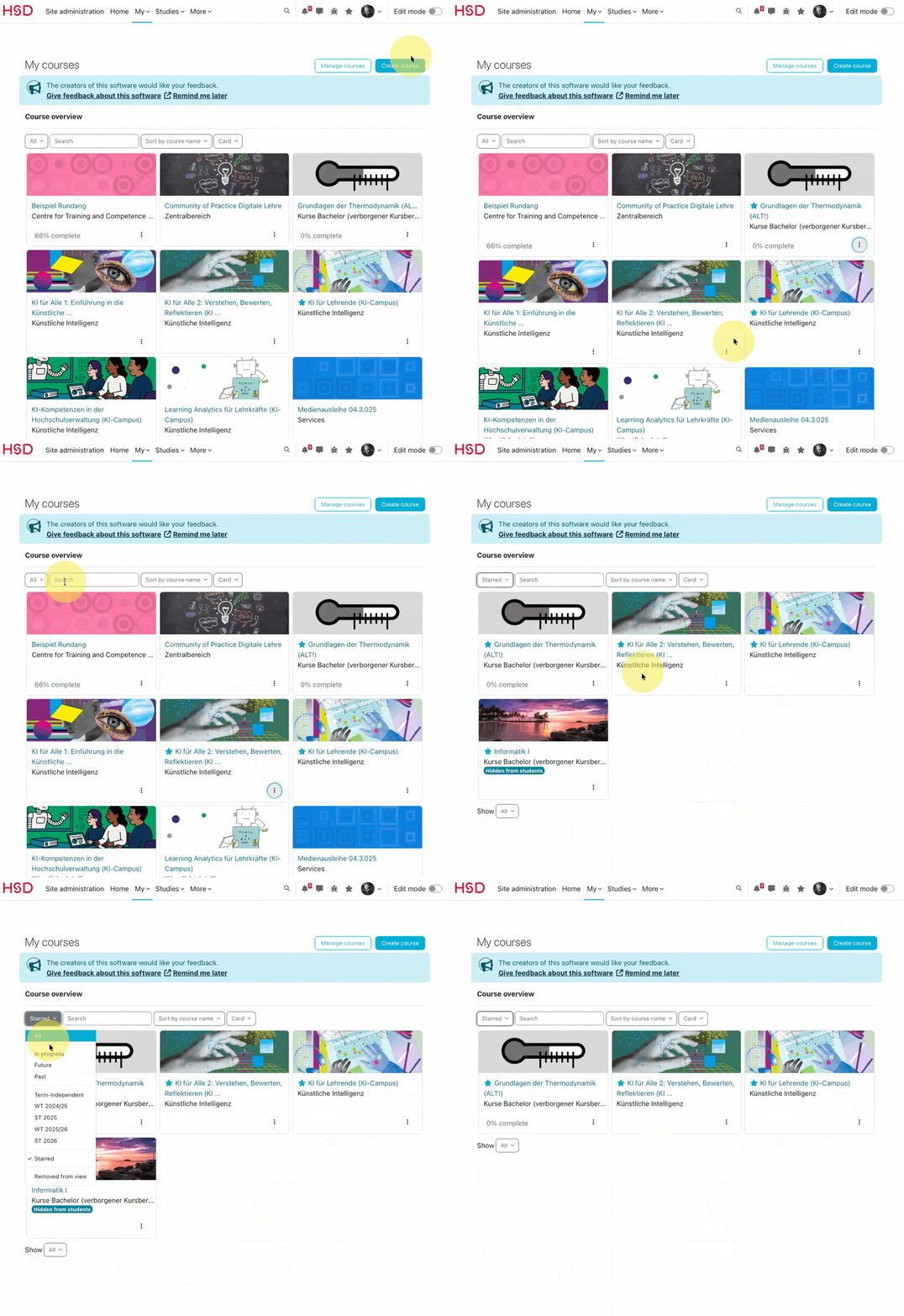
After a few semesters – or even during your first one – your dashboard may become crowded with course tiles. The 'Favourites' feature helps you stay organised:
- Go to "My Courses" and find a course tile you want to keep handy.
- Click the three-dot menu (⋮) at the bottom right of the tile.
- Select "Mark as favorite" (or "Kurs als Favorit markieren").
- Use the filter dropdown above the course overview to show only favorites.
Who Supports Moodle at Your Faculty?
If you run into problems or have questions, there are several places to get help:
- Your faculty's Moodle administrator: Each faculty has a dedicated contact person who is familiar with your department's specific setup. You can find a list of these contacts on Moodle after logging in via the 'Service' menu at the top of the page.
- General Moodle support: For questions that are not faculty-specific, email moodle@hs-duesseldorf.de.
- ZWEK (Center for Continuing Education and Competence Development): The ZWEK team supports digital teaching and learning. For didactic questions, contact didaktik.zwek@hs-duesseldorf.de.
FAQ and Further Help
HSD provides a dedicated FAQ section for students directly on the Moodle platform. It covers common questions about login, course enrollment, navigation, and more:
👉 Moodle FAQ for Students (accessible after login)
Quick Checklist for Your First Week
☐ Go to mdl.hs-duesseldorf.de and log in with your HSD account
☐ Accept the privacy policy
☐ Switch the language to English if needed
☐ Assign yourself to your faculty in your profile settings
☐ Log out and log back in to complete the setup
☐ Find your courses under "home"
☐ Mark your current courses as favorites
☐ Bookmark the Moodle URL for quick access
Welcome to HSD! You've got this – good luck with your studies! 🎓
Useful Links
At HSD (German)
- Moodle FAQ for Students – common questions and answers (German, login required)
- ZWEK Blog – Articles for Students – tips and guides about Moodle and other digital tools (German)
- ZWEK – Official Moodle Information Page – overview of Moodle at HSD (German)
General Moodle Help (English)
- Moodle Docs – User Quick Guide – getting started with Moodle as a student
- Moodle Docs – Dashboard – understanding your personal dashboard
- Moodle Docs – Course Enrolment – how enrollment works in Moodle
- Moodle Docs – Starred Courses – organizing courses with favorites